EN
EN  ID
ID  AR
AR  ZH
ZH 

1. Open browser and access the following address: 👉 https://vpn.uin-malang.ac.id:10443

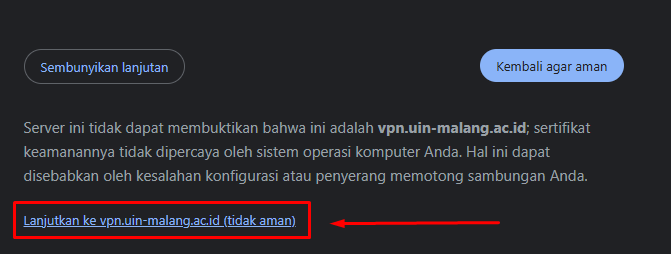
2. If a security warning appears, click “"Continue"” then select “Continue to vpn.uin-malang.ac.id (not secure)”.

3. On the login page, enter username and password which has been given by the admin. then click the button Login.

4. After successfully logging in, you will see the Fortigate VPN main page as shown in the image below.
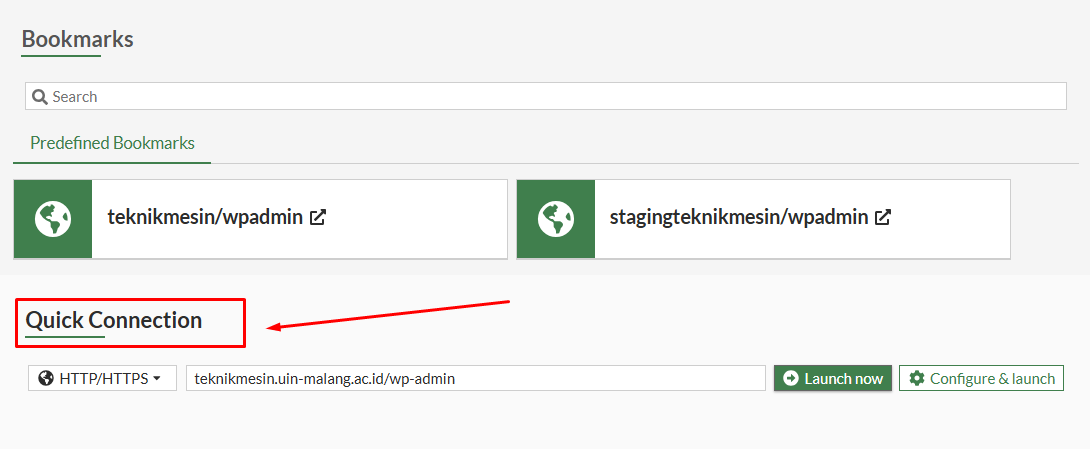
5. Scroll down until you find the section Quick Connection.
6. In the column URL, enter the website address you want to access Example: https://teknikmesin.uin-malang.ac.id/wp-admin

7. Click the button Launch Now.
8. You will be immediately directed to the website's admin login page via a VPN connection.