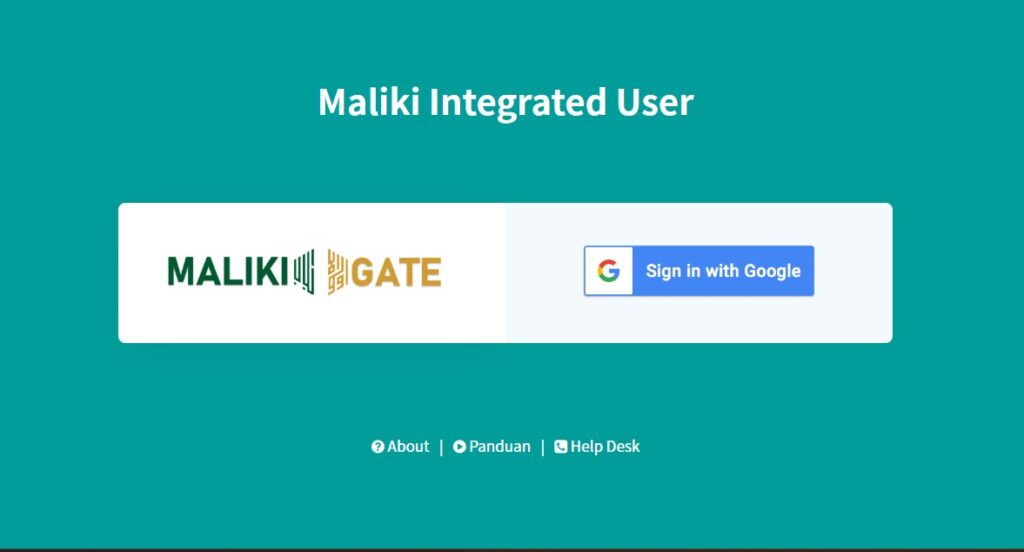
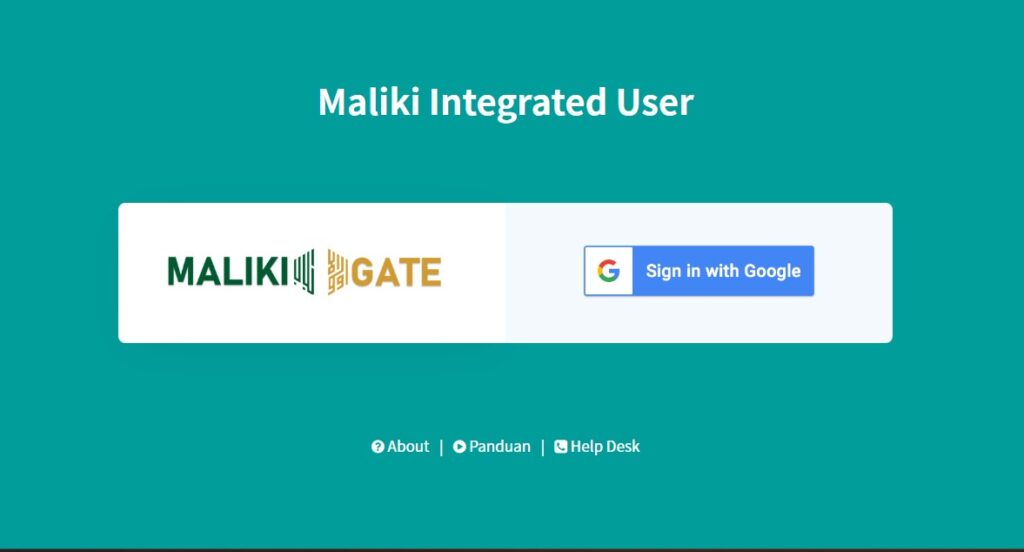
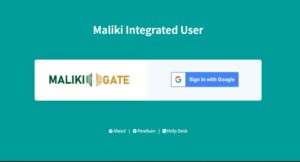
Panduan ini bertujuan untuk memudahkan Dosen dan Tenaga Kependidikan (Tendik) UIN Malang dalam mengakses serta memanfaatkan berbagai aplikasi layanan internal melalui portal Maliki Integrated User (MIU) menggunakan akun email resmi institusi. Langkah 1: Akses Laman Portal MIU Buka peramban (web browser) di perangkat Anda, lalu navigasikan ke alamat miu.uin-malang.ac.id. Langkah
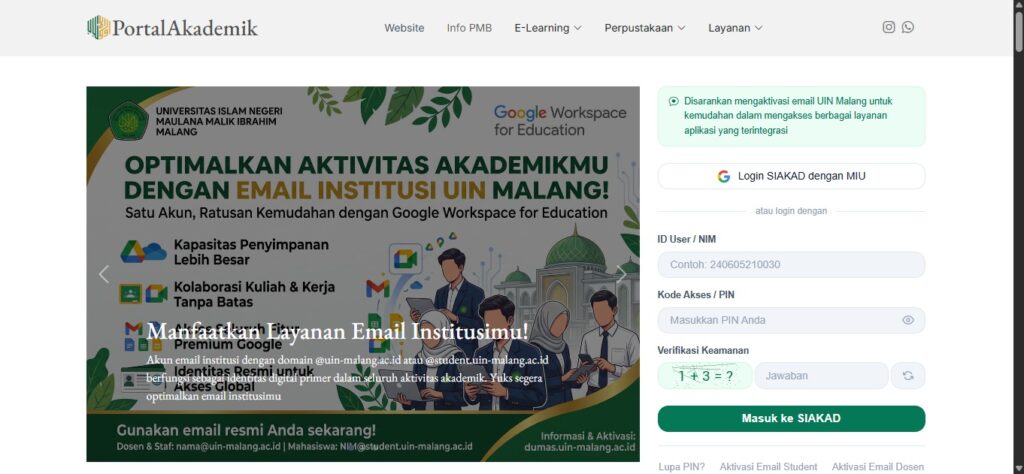
Panduan ini bertujuan untuk membantu mahasiswa UIN Malang dalam memperbarui alamat email pribadi yang terdaftar pada Sistem Informasi Akademik (SIAKAD). Langkah 1: Akses Laman SIAKAD Buka peramban (web browser) di perangkat Smartphone dan ketik siakad.uin-malang.ac.id. Langkah 2: Login ke Akun SIAKAD Masukkan NIM dan PIN akun SIAKAD Anda, lalu klik
Panduan ini bertujuan untuk memudahkan civitas akademika UIN Malang dalam mengakses dan memanfaatkan berbagai aplikasi layanan internal melalui portal Maliki Integrated User (MIU). Langkah 1: Akses Laman Portal MIU Buka peramban (web browser) di perangkat Smartphone, lalu ketik alamat miu.uin-malang.ac.id. Langkah 2: Login Menggunakan Akun Email Pribadi Klik tombol Sign
Panduan ini bertujuan untuk memudahkan pengelola website unit, fakultas, atau lembaga di lingkungan UIN Malang dalam membuat pengumuman, pamflet, atau informasi penting menggunakan fitur Pop-up dari Elementor Pro. Langkah 1: Mengakses Menu Popups Langkah 2: Membuat Template Pop-up Baru Langkah 3: Memilih Layout atau Mendesain Pop-up Langkah 4: Mengatur Kondisi
Institutional Email Activation Guide for LAB or Organization To create an institutional email account for LAB or Organization, please send an Email Creation Letter signed by the Dean/Head of Study Program, then send it to: email: ptipd@uin-malang.ac.id After sending the Application Letter, please click on this text.
To create or activate an institutional email for employees, please fill in the following link: 1. Click this text to activate the institutional email for UIN Maulana Malik Ibrahim Malang employees. 2. Complete the data for institutional email activation. Please fill in the data in the Google form in detail and completely, then click "Submit". 3.
Activation of Lecturer Institution Email Account For PNS and BLU Lecturers, it is necessary to independently activate the @uin-malang.ac.id email account from Siakad (activation takes several hours to be accessible, a maximum of 1×24 hours after activation). 1. Open SIAKAD Please open https://siakad.uin-malang.ac.id/ on the Chrome/Edge/Mozilla browser. 2. “Lecturer Profile” Menu Click the “Lecturer Profile” menu,
Student Institution Email Account Activation For active students, it is necessary to independently activate the @student.uin-malang.ac.id email account from Siakad (activation takes several hours to be accessible, a maximum of 1×24 hours after activation). 1. Open SIAKAD Please open https://siakad.uin-malang.ac.id/ on the Chrome/Edge/Mozilla browser. 2. “Student Profile” menu Click the “Student Profile” menu, then click
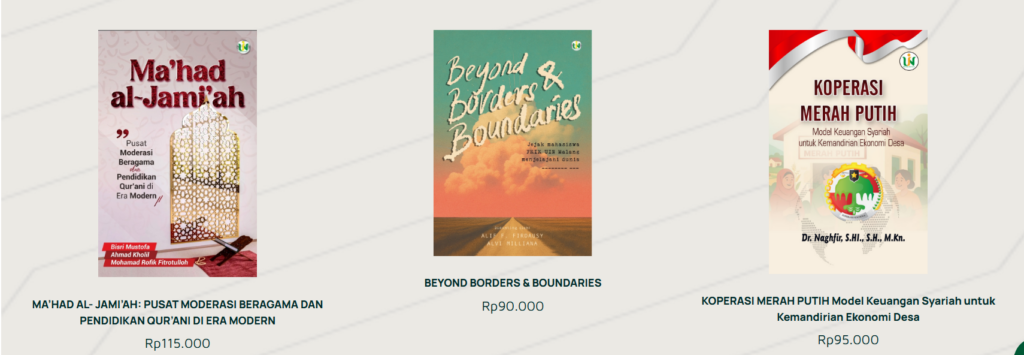
This guide will help you add a new book cover (as shown above). Follow these steps: Go to the "dashboard" page, click "page," then click "add page." 2. Type the title you want to add, for example, "Green Economy, Sharia Green Finance..." then click "edit with Elementor."“
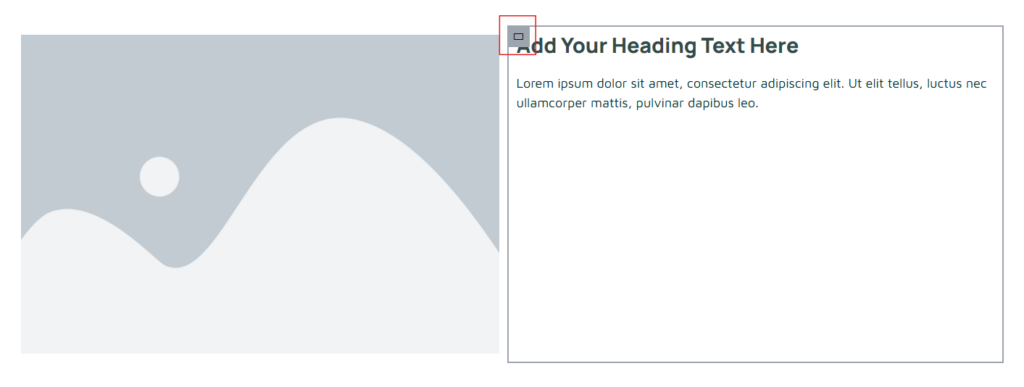
This guide will help you set the position of your container to the center, side, or bottom. Click the container image on the left edge (the one with the red box). 2. The display when the container image is clicked. If you want to center your content, click the "center" image (the yellow highlighter in the image).
 EN
EN  ID
ID  AR
AR  ZH
ZH