EN
EN  ID
ID  AR
AR  ZH
ZH 
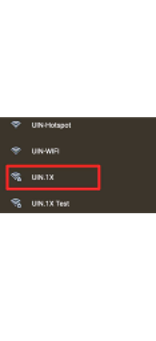
The UIN.1X connection step guide is as follows:
1. Click Settings - Connection - Wi-Fi (Make sure it is in the On position) - Click the UIN.1X signal
2. In the next stage, it can be different for each type and brand of Android cellphone.
Method 1
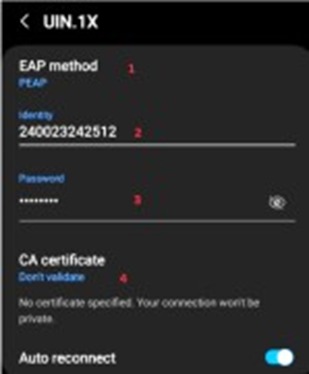
- EAP method using PEAP Phase 2 authentication Select MSCHAPV2
- Identity, fill in your NIM (Student Identification Number).
- Password: Enter the SIAKAD password
- CA certificate select: Don't Validate/Do not Validate
Method 2
- EAP method uses PEAP.
- Phase 2 authentication Select MSCHAPV2.
- Identity, fill in your NIM (Student Identification Number).
- Password: Enter the SIAKAD password.
- CA certificate select :None.
Method 3
- Identity, fill in your NIM (Student Identification Number).
- Password: Enter the SIAKAD password
- CA certificate select: Use Certificate System.
- The domain is filled with uin-malang.ac.id.
- EAP method uses PEAP.
- Online Certificate Status select Don't Validate.
- Phase 2 authentication Select MSCHAPV2.