EN
EN  ID
ID  AR
AR  ZH
ZH 

TranslatePress is a WordPress plugin that lets you translate your website into multiple languages. It offers an easy-to-use visual translation editor and supports a wide range of content types.
Here are the steps on how to translate a page with TranslatePress:
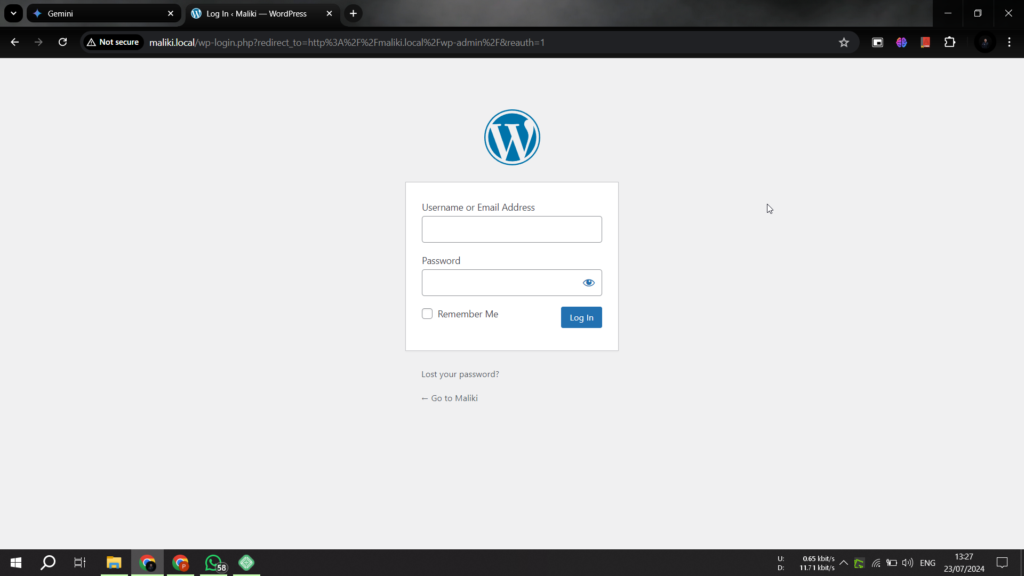
1. Log in to your admin account with the following address: ({domain address}/wp-admin), then the following page will appear, and log in using your account.
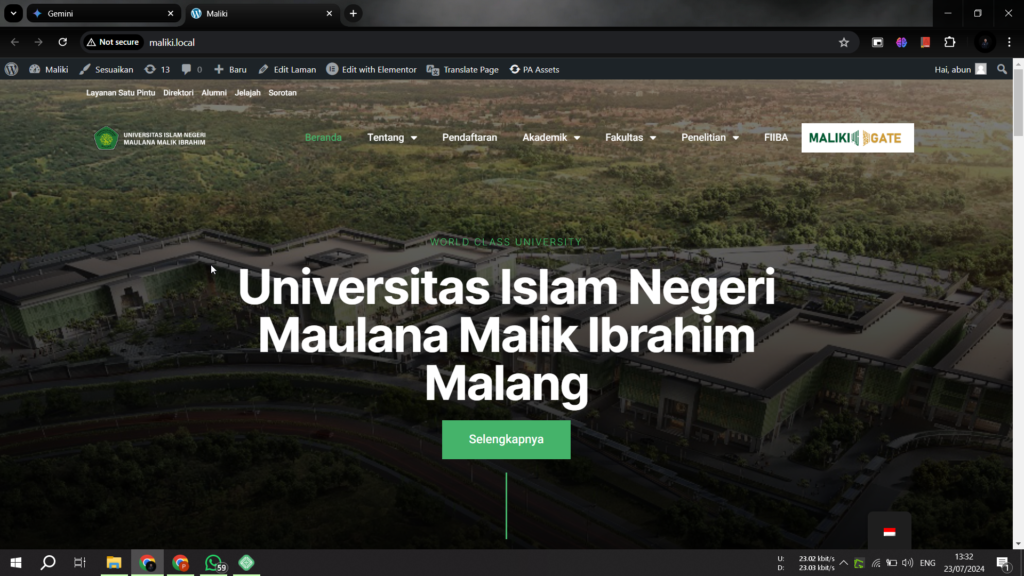
2. After you enter the admin panel, you can immediately return to your main page (main domain address) then you will find the translation button on the top panel of your website.
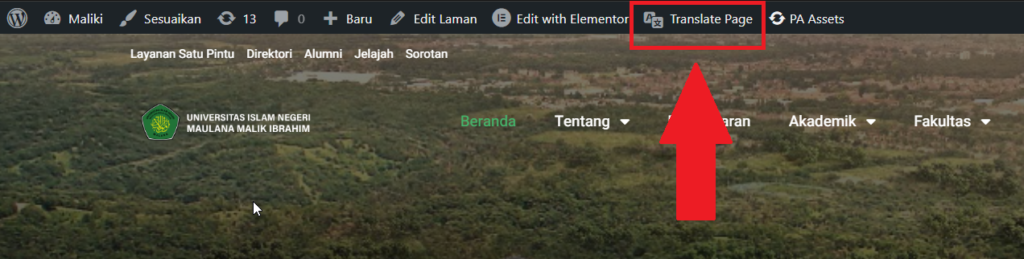
3. Then you click the “Translate Page” or “Translate Page” button on the top panel.
4. Then a translation panel will appear on the left side of your page as follows.
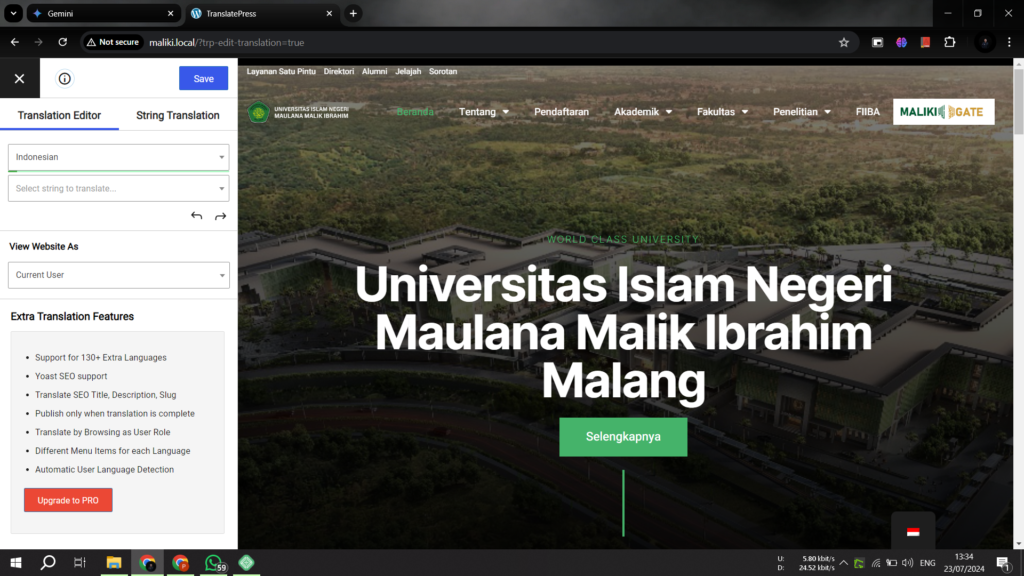
5. Before you start translating the text, you must first change the "destination" language of the selected text to be translated by changing the language in the translation panel (in this example, I will translate the text into English).
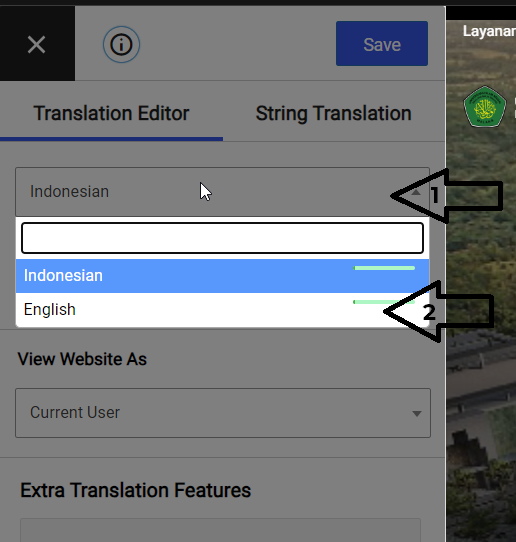
6. When the translation panel appears, you can translate the “text” you want to translate by pointing the cursor at any type of text on the page, such as titles, navigation, menus, links, buttons, and so on (marked with the pencil button next to the text).




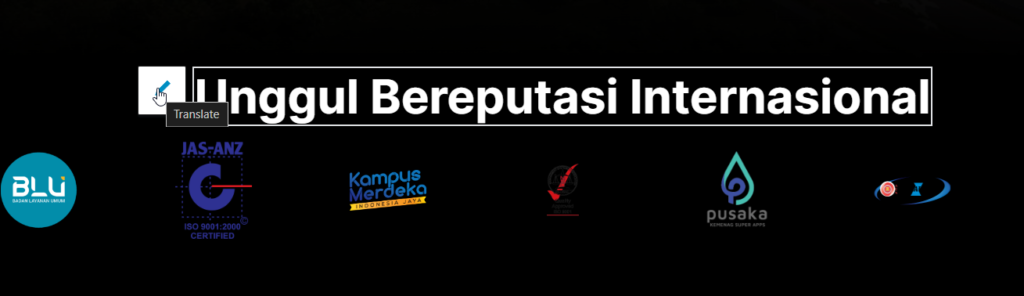
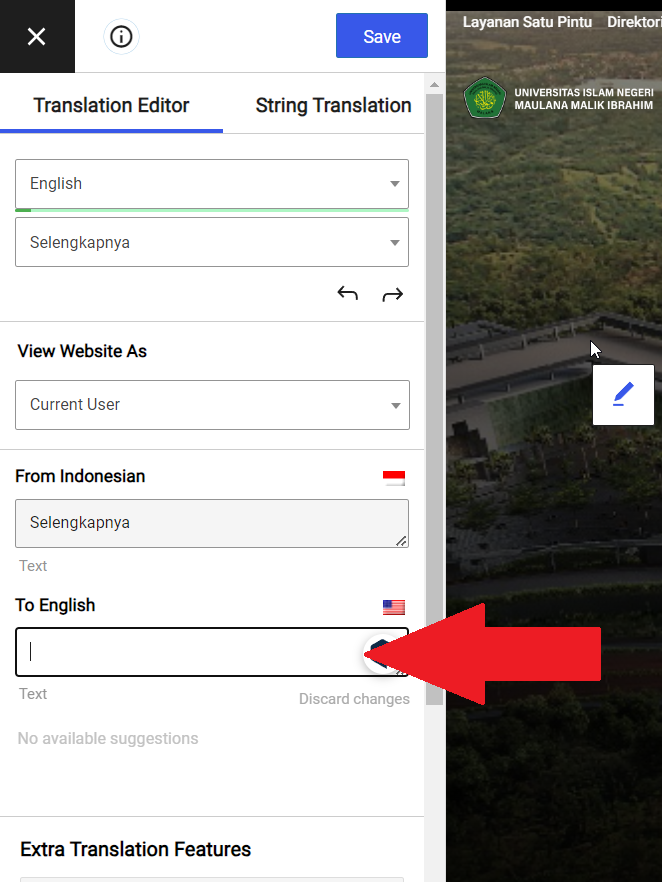
7. To start translating, simply click the pencil button next to the text you want to translate, then the text will be in the translation panel, then you just add the translation of the text to the translation panel.
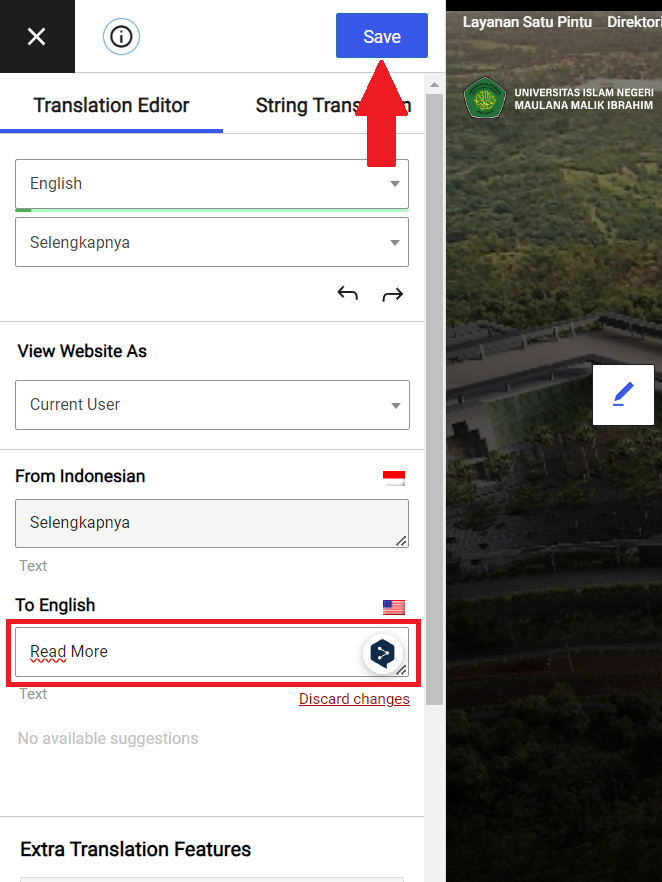
8. Once you've entered the translated text, click the "save" button at the top of the translation panel. The translated text will then be automatically saved.
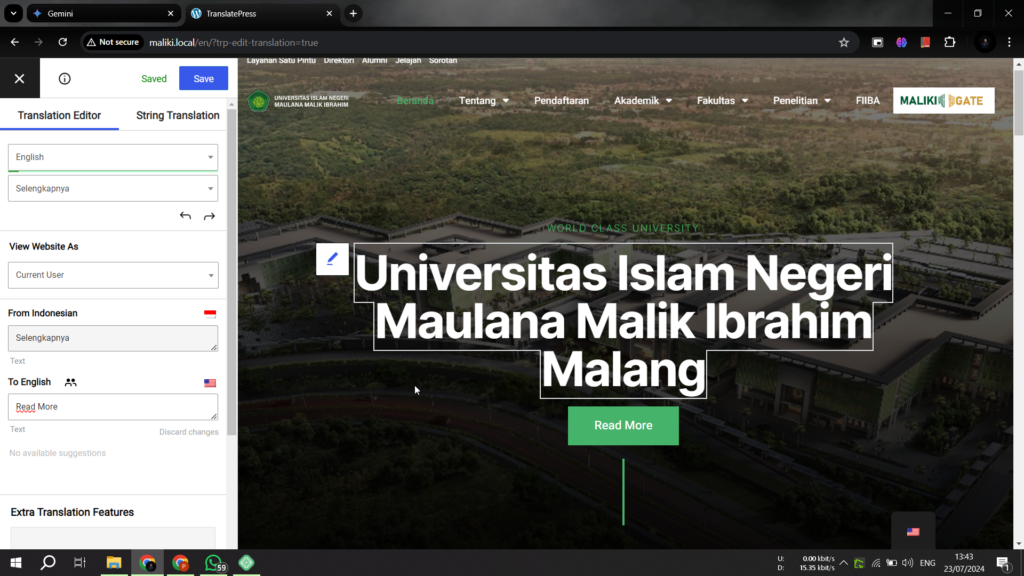
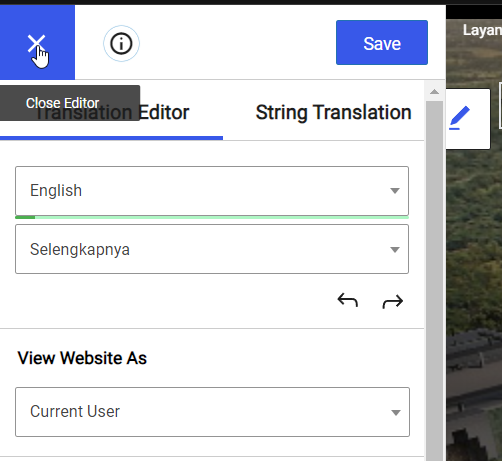
9. If you want to exit translation mode, just click the “X” button in the translation panel.
10. Note: all types of text can be translated with translate press, whether it's a page or a post, and to move pages or navigation, there's no need to close the translation panel, you just move to the page you want to go to (like moving pages in general) then start translating as usual.