MIU Login

Guide to Adding a Book Cover (malikipress)

This guide will help you if you want to add a new book cover (like the one shown above). Follow the steps below:

  1. Enter the page “dashboard” then click “page” after that click “add page”

   2. Type the title you want to add, for example “Green Economy, Islamic Green Finance…” after that click          “edit with elementor”

   3. After that, the page you have created will appear, then click “folder image” to display existing templates.

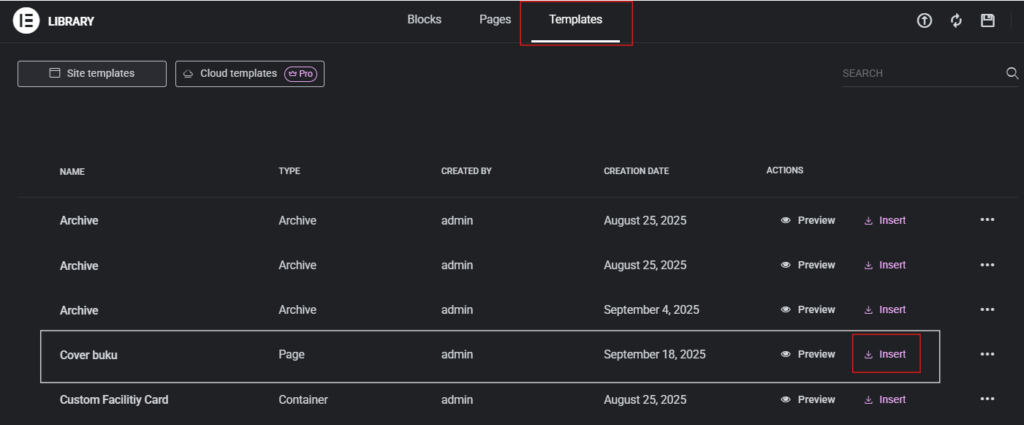
   4. Display after you click folder image

  • choose “"book cover"”
  • click “insert” (book cover)

   5. Display after you click insert

  • click “Apply” 

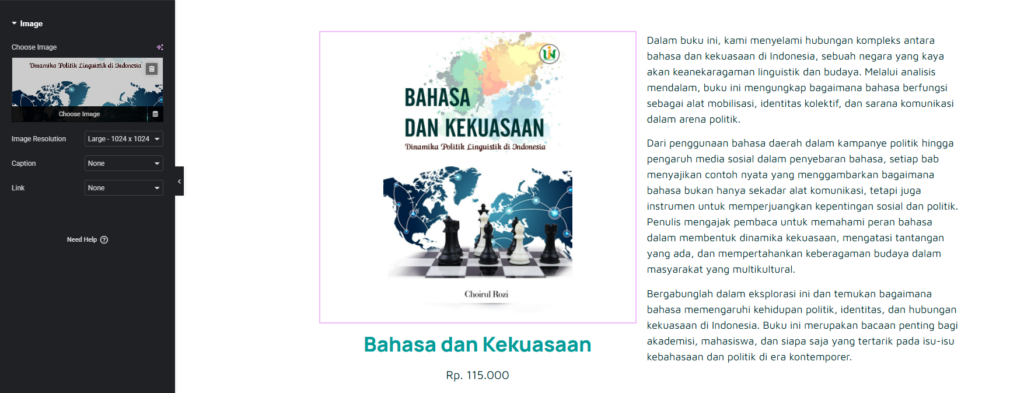
   6. Display after you click Apply

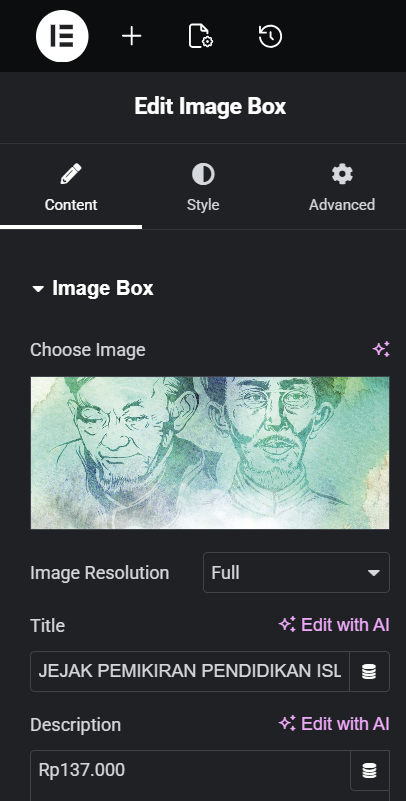
  • click “"Picture"”, “"title"”, “text” “"description"”, And “"price"” to change the content according to your book title
  • Copy paste your book description into the description template.

   7. The display after you change the template contents to match the book title.

  • click “Publish”
  • then back (return) 2x to the page dashboard

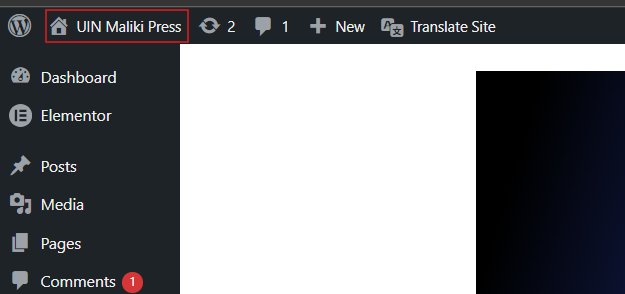
8. Dashboard View

  • click “"UIN Maliki Press"”

9. Display the row of book covers you want to add.

  • Scroll down until you find the place where you want to add the book cover.

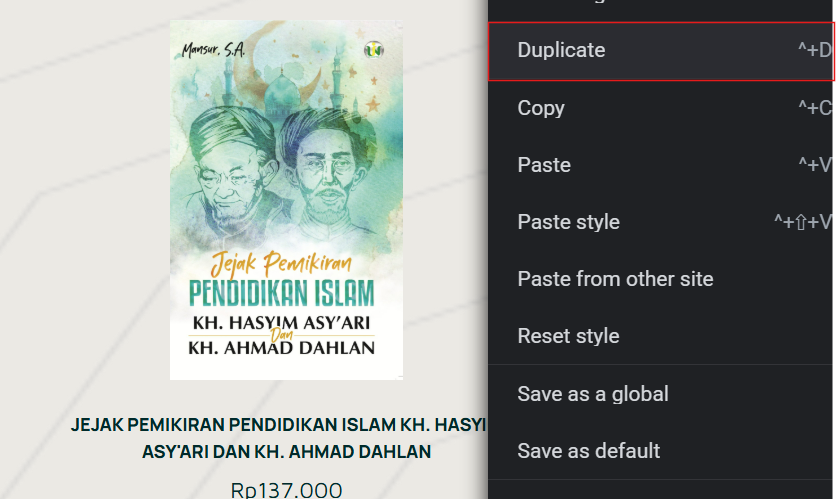
  10. Duplicate the book cover image

  • Right click on the image you want to duplicate

  11. The display if you have duplicated the book cover

  • Click on the image what you want to edit

  12. Display if you have clicked on the image you want to edit

  • In the picture 1, change the cover image, title, and price of the book with the book cover you want to add
  • In figure 2, after you change the title and price, select “"link"” and type the title of the book you added earlier, then “click (your book title)”.
  • Don't forget to click “Publish” to save.

Related News